| Terminal Displays
| Action Taken
|
| CREDIT . . . . . . . . . . . . . SALE |
ACCOUNT
 |
| |
| |
|
 |
|
| |
|
Press the [Enter/Paymt] button ( 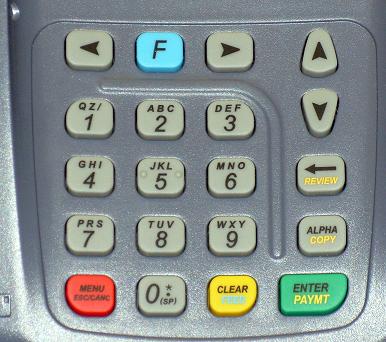 ) until the
terminal displays "OptiCard Clerk ID". ) until the
terminal displays "OptiCard Clerk ID". |
|
| OPTICARD |
| CLERK ID
|
| |
| |
|
|
|
| |
|
| Key in 1 and press the [Enter/Paymt] button. |
|
| PROGRAMS: |
| 1. Gift Card |
| 2. Retail Merch. |
| 3. Loyalty |
|
|
|
Use the Down [ ]
button to scroll down to Loyalty. ]
button to scroll down to Loyalty. |
| PROGRAMS: |
| 1. Gift Card |
| 2. Retail Merch. |
| 3. Loyalty |
|
|
|
Press the [Enter/Paymt] button. |
| TRANSACTIONS: |
| 1. VOID |
| 2. BALANCE |
| 3. ADD VALUE |
|
|
|
Use the Down []
button to scroll down to Balance. |
| TRANSACTIONS: |
| 1. VOID |
| 2. BALANCE |
| 3. POST AUTH |
|
|
|
Press the [Enter/Paymt] button. |
| Enter Account |
| or Swipe card: |
| |
| |
|
|
|
Swipe the card through the magnetic stripe reader.
Manual entry is allowed. |
| CONNECTING . . . |
| |
| |
| |
|
|
|
The terminal will connect to the host for authorization.
Once approved, the terminal will print two receipts. |
| One receipt is for the merchant's records, and one is to be
given to the customer along with the card. |
| CREDIT . . . . . . . . . . . . . SALE |
| ACCOUNT
|
| |
| |
|
|
|
Transaction complete. |
