| Terminal Displays
| Action Taken
|
| SPS-EFT CHECK |
| CHECK SALE |
| PAYROLL/BUSINESS |
| VERIFY ONLY |
| MORE |
 |
 |
|
Press the [F2] button. |
CHECK SALE
Scan Check . . .
 |
 |
|
Insert the check into the reader/imager. |
CHECK SALE
Key in
CHECK AMOUNT
and Press ENTER
$0.00
|
|
|
Key in the amount of the check and press the Green [Enter] button.
Test: Key in 100. |
CHECK SALE
Key in
STATE CODE
and Press ENTER
OZ
|
|
|
If prompted for the Driver's License.
If
the DL is the as displayed, press the Green [Enter] button.
If the DL is from out of state, key in the 2-digit numeric code and press
the Green [Enter] button. |
|
CHECK SALE
Key in
DRIVERS LICENSE #
and Press ENTER
- - - - - - - - - -
- - - - -
|
|
|
Swipe the DL or key in the DL number including any letters and press the Green [Enter] button.
Test: Key in 12345. |
To key in a letter, press the numbered button with the desired letter on it
and then press the [Alpha] button until you get the desired letter. 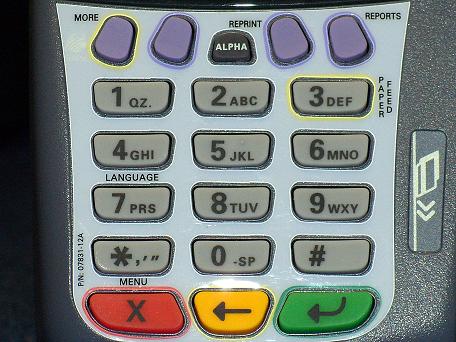
NOTE: The letters
Q & Z are located on the number 1 button. |
CHECK SALE
Connecting . . .
|
|
|
The terminal will connect to the host for authorization. |
CHECK SALE
MANAGER NEEDED
REPRESENTED CHECKFORCE
|
|
|
If during the processing of a check you receive this message, press the [F4] button. |
CHECK SALE
Key in
MANAGER PASSWORD
and Press ENTER
_ _ _ _ _ _
|
|
|
Key in [1] and press the Green [Enter] button. |
CHECK SALE
Connecting . . .
|
|
|
The terminal will reconnect to the host for override authorization. |
CHECK SALE
OVERRIDE ACCEPTED
EXIT
|
|
|
If approved, a receipt will print for the customer to sign. Press the Green [Enter] button to print out the
customer's copy.
Press the [F4] button. |
| SPS-EFT CHECK |
| CHECK SALE |
| PAYROLL/BUSINESS |
| VERIFY ONLY |
| MORE |
|
|
|
Transaction complete. |
