| Terminal Displays
| Action Taken
|
HOME MENU
TSYS
Home
|
 |
 |
From the Home Menu, press the Red [Cancel] button. 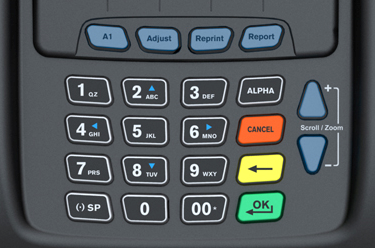 |
Application Manager
V 0.20
Please enter system
Password:
****** |
|
|
Key in 000000 and press the Green [OK/↵] button. |
TechTrex
AppManagerDownload
Remove
Enter
App
Set Main App |
|
|
Press the [F1] button. |
Download
Individual Download
Package Download
|
|
|
Press the [F1] button to download TSYS or Gift Cards.
Press
the [F2] button to download Checks (Package). |
TechTrex
AppManagerAppl Download
Kernel
Download
App Mngr Download
Logo Download |
|
|
Has the SD Card already been prepared:
Yes, press [F1] to
select Application Download.
No, click here to prepare the SD Card. |
Application
DownloadSD Card
RS-232 Passive
IP Download
PSTN Full |
|
|
Press the [F1] button. |
TSYS.tar.gz.app
Package.tar.gz.app
GETIGift.tar.gz.app
↓
|
|
|
Press the [ƒ] button that corresponds with the application you need to
install.
Package contains the latest versions of the Kernal, Application Manger, Scanner Firmware,
and the GETI Check application. |
Downloading,
Don't pull out card
|
|
|
The terminal is currently downloading. In about 10 seconds, the terminal will
complete the download of the application successfully, reboot and display the Home Menu. |
Download
Succeed
|
|
|
The download is done and now it will install the application. The SD Card can
be safely removed. |
HOME MENU
TSYS
GETI
GETIGift
Home
|
|
|
The download is complete. |
